Showing posts with label Google Tricks. Show all posts

Wednesday, 7 December 2011

GoogleTV 2.0 – Setup Application to Run on Startup / Power On


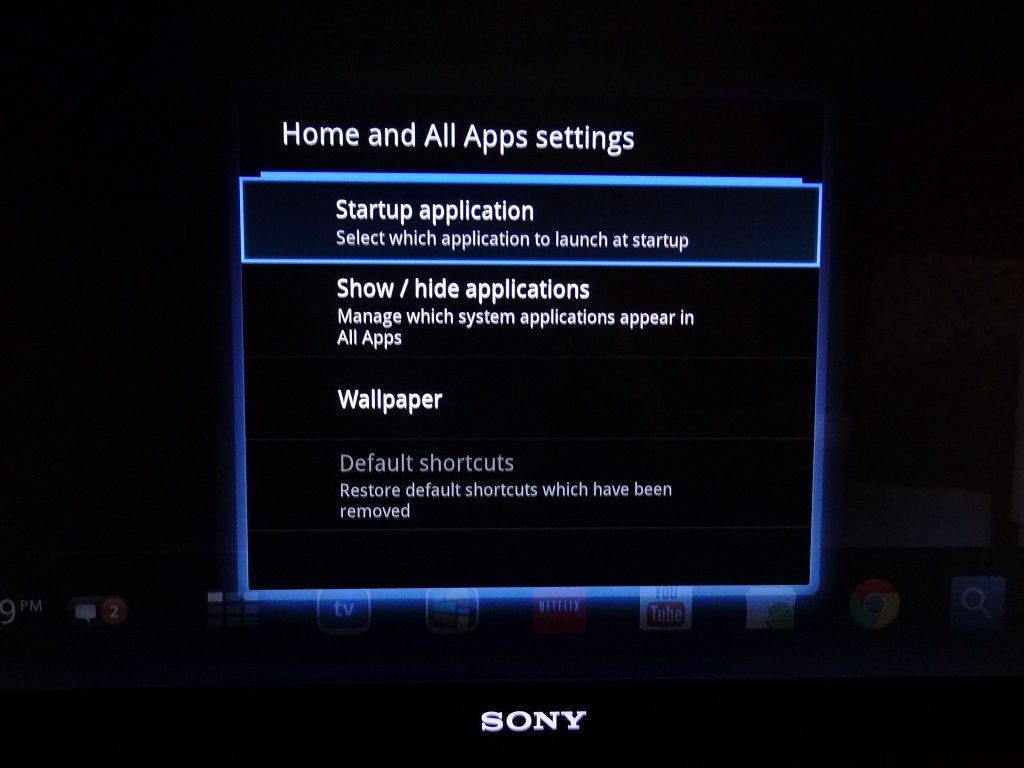
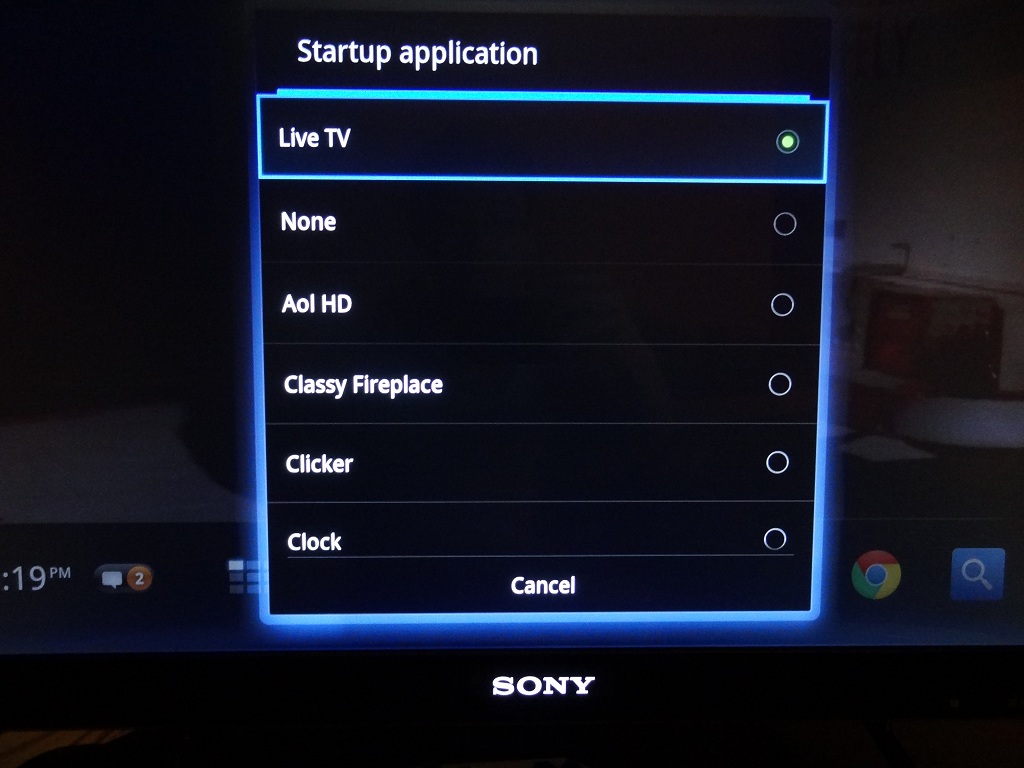
This guide will explain how to set an Application to run on startup and/or power on.  Initially, the default Input is set to run on Power On; we can change this to startup an Application instead.


1.  Go to your Home screen by selecting the Home button on your remote.

2. With the Home screen up, select the Menu button.

3.  Scroll down to “Home and All Apps settings“.

4.  Choose the “Startup Application” option.

The next time you power on your GoogleTV, it should startup the Application you just selected.

Monday, 12 September 2011

How to Fix Google Chrome Crash Problem

Crashing while browsing is something which really makes anyone to bang his PC, well when sometimes you browse internet and you are on some really important thing which might kill you if lost and suddenly browser crashes that’s what I faced last night while browsing through Google Chrome Browser and I was like in a deep shit.

So you might be getting errors like below .:

How to Fix Google Chrome Crash Problem
Well but later I figured out the real reason behind this problem was some software confliction. Well now you might be thinking what is this software confliction well Google Chrome still lacks some software's compatibility so if you have installed some third party software's than they might be conflicting with Google Chrome, that’s why Google Chrome is crashing.

List of Software's that might be causing problems .:

  • Safe Eyes Parental Control Software
  • ContentWatch
  • Microsoft Office XP Input Method Editor
  • Naomi Web Filter
  • Trusteer Rapport
  • Hide My IP
  • Venturi Firewall
  • PPLive
  • Internet Download Manager
  • ESET NOD32 Antivirus only 2.7 version
  • iS3 anti-spyware (STOPzilla)
  • NVIDIA Network Access Manager and NVIDIA nTune
  • WinMount
  • FolderSize
  • Speedbit Video Accelerator

How to FIX this Crashing Problem .:

Now these above software's can cause Google Chrome to crash, but the thing is how to exactly check which one is really conflicting with Google Chrome to crash. To check this open Google Chrome fast and type about:conflicts and hit enter you will see something like below .:

You can click the above image to resize it and then you can see the orange line in the image shows the software conflicting with Google Chrome so the best way is to disable or uninstall that software.

  !!! Enjoy !!!

Disable Advanced Browser Integration .:

But if in your case its really showing the Internet Download Manager than there is no need to uninstall that but you can simply disable the Advanced Browser Integration in Internet Download Manager options menu like below .:
So this will simply solve your problem but if still problem persist than simply uninstall that software which is conflicting and everything will be fine so remember to check conflicts by typing about:conflicts in Google Chrome and disabling or uninstalling the conflicting software.

Friday, 9 September 2011

Hacking Gmail Accounts 100% Working Trick


Hack a Gmail Account Easily. [Guaranteed Hack]

To all Leechers : Give me Credits if you Leech my THREADS and Posts.

Okay I will make the Tutorial Short and Clear. For this I'll Explain you STEP by STEP.

-Go to Youtube

-Search "Runescape Hacker" or "Runescape Hacker Download Link"

-Find the Download Link (They are usually in the comments Section.)

-Download the Runescape Hacker Tool.

-Don't open the Runescape Hacker Tool, It may be Backd00red Instead place it in a Separate Area.

-Download HexWorshop. Google it and you will Find the Link.

-Install HexWorkshop.

-Now go to the downloaded RunescapeHacker Phile and Right Click on it !

-Now You Will see something like "Edit this with HexWorkshop" Click It !

-Now you will see the HexWorkshop Screenie. Do Nothing, You will Feel confused for the First time But Believe it's Easy.

-Just go to the Edit on the Top and Find a Button "Find"

-When you get 'Find", Click on it !

-Now Before start Finding Anything Make sure you change the "Hex" to "String" value.

-Now Enter "Gmail" to the Box and Hit "Find".

-You will Get Popping Up a Black area. Don't touch it. Instead see on your Right for the Texts.

-Copy the Highlighted text and Paste it in a Text document (Newly Created).

-Remove the [.]>DOTs and You will see The Email ID + the Passwd.


Hope you Enjoy my Stuffs.

Saturday, 3 September 2011

Get Your Google Plus User Name


Google Plus User Name
Follow these simple steps for making your Google plus user name:

Four Google Search Engines At One Page


4 Search engines at one page..
 
Go to this link http://googlegooglegooglegoogle.com.br/

10 Funny Google Tricks


We all know Google is the world's leading search engine. Today I'm telling about some Google funny tricks.

1. Dancing Google Logo
  • Go to URL and you will see dancing Google logo.http://www.googleloco.com/
2. Feel The Gravity
  • http://mrdoob.com/projects/chromeexperiments/google_gravity/
3. All Google Logos
  • http://www.google.com/logos/
4. Google Calculator
  • Write something like 4+2 & hit Enter, Google will display the result.
5. Google Epic
  • http://www.toobigtouse.com/
6. Google Moon
  • http://www.google.com/moon/
7. Google In Black
  • http://www.ecoogle.co/
8. Put Your Name On Google Logo
  • http://www.funnylogo.info/
9. Mirror Image Of Google
  • http://elgoog.rb-hosting.de/index.cgi
10. Google Sphere
  • http://mrdoob.com/projects/chromeexperiments/google_sphere/

Wanna to generate some random lines with different colours using batch? Download text file, save it as lines.bat , then open it. It will generate random lines. For stopping press Ctrl+C and then Y on asking. Download text file from here.

Follow these steps:
  • In Google search bar type: "Software name" 94FBR

     !!! Enjoy !!!

How To Remove URL From Google's Search Results?


Sometimes you delete any webpage from your site, searching in Google will show the result of that page. It makes bad impression on users, when they click on link, and got page not found error or something like that. So you must remove deleted pages from Google's search result. Removing dead links from Google's search result is also important for SEO of your site. Follow these steps for removing your dead links from Google search:
  • Go to Google Webmaster Remove Tool by clicking on this link:Webmaster Removal Tool
  • You will be redirected to My Removal Request Page.
  • Click on New removal request.
  • Enter the URL that you'd like to remove.
  • Click on continue.
  • Select the appropriate Reason and steps.
  • Click on Submit Request.
  • After few days URL will be remove from Google's search result.